

Are your products affected by the ‘Mismatched Domains’ error in Google Merchant Center (GMC)? It is important that you take prompt action and resolve it quickly, as till the time it’s not resolved, your products will stay disapproved, and you will not be able to promote them across Google with any marketing method. This means you miss out on potential traffic, clicks, impressions, and revenue.
But what exactly is the ‘Mismatched domains’ error? What are the common reasons why merchants face it in their GMC? And are there any tips that can help you prevent it from recurring in the future?
We have come up with this blog to answer all these questions. This guide will cover the ‘Mismatched domains’ error in GMC in detail, along with the step-by-step process to fix it and some best practices to prevent it from affecting your campaigns in the future.
Table of Contents
What is the Mismatched Domains Error?

The “Mismatched domains” error occurs when the domain of your product’s landing page URL (as submitted in your feed with the link [link] attribute) does not match the website domain that you have verified and claimed in your Google Merchant Center account.
In other words, this error occurs when Google’s systems detect that the landing page URLs of products in your feed point to a domain different from the one you originally registered in GMC.
So, for example, if your verified and claimed website on the GMC is http://www.abcstore.com, and an item’s link [link] attribute points to http://www.abcstore.uk, then Google will flag that as a domain mismatch. That’s because abcstore.com should be the domain that appears in all your product landing page URLs and not abcstore.uk.
How does it Impact Your Products?
If you notice the ‘Mismatched domains’ error in your GMC account, Google will disapprove the affected items. That means they will be removed from all Shopping ads, Local inventory ads, and even free product listings.
To be able to use the products again and promote them via different marketing methods, you will first have to resolve the domain issue. Then Google will review the changes that you have made, and if it finds that the problem has been resolved completely, your products will get approved again.
Also, if you don’t resolve the ‘Mismatched domains’ promptly and allow it to persist for weeks or months with no action, then Google reserves the right to even suspend your GMC account.
At the end of the day, Google’s policy team members are the final arbiters.
Common Reasons for the Mismatched Domains GMC Error
Let’s also discuss some of the most common reasons why this error occurs in GMC.
- No registered URL in GMC: If you want to submit a link for any item that points to your website, then first, you need to verify and claim that website on the GMC. If you fail to do so and directly start submitting links in product data, you are prone to the ‘Mismatched domains’ error.
- Recent Changes to Product Data or Website Structure: In case you update your website’s structure, change URLs, or even move products to a new location on your site, then the chances of this error occurring are high. That’s because your product landing page links may no longer match the domain that you verified earlier on the GMC.
- Using the wrong domain or subdomain: Merchants also face this error when they mistakenly claim a wrong domain or subdomain, and their product URL domains differ from that. This is often the case with Shopify merchants who try to verify and claim ineligible domains like ‘example.myshopify.com’ in the GMC.
- Products from multiple domains submitted in one feed: As per Google’s guidelines, one merchant center account should only be linked to one domain. Therefore, you can only submit products from a single domain in your GMC account. If your feed includes products from multiple domains, then Google might flag it as a domain mismatch.
- New domain: If you shift to a new domain, then it’s important to:
- First, verify and claim it in GMC.
- Then, update your product data accordingly.
Failure to complete any of the steps above can also be a reason why you are noticing the domain mismatch error in GMC.
How to Fix Mismatched Domains in GMC?
Now let’s discuss the process to fix this error:
Step 1: Check Your Domain in ‘Business Info’
- First, go to your Merchant Center account.
- Then navigate to “Your Business” and click on “Business info.”

- Check “Your online store” and verify if your store’s URL, domain, etc., are valid and accurate.

- If not, then you must first update that. And then verify and claim the URL.
| Bonus: Read our blog on Website not claimed in GMC and Google Merchant Suspension Due to Policy Violations. |
Step 2: Check the Product Data of Affected Products
- Go to ‘Products’ in your GMC account.
- Click on “Needs Attention.”
- Use the filter icon to find which products are currently affected by the “Mismatched domains” error.

- Click on any affected product’s title.
- Scroll down to “Additional details,” expand it, and then expand “Raw data source attributes.”
- Check the value for the “link” attribute.
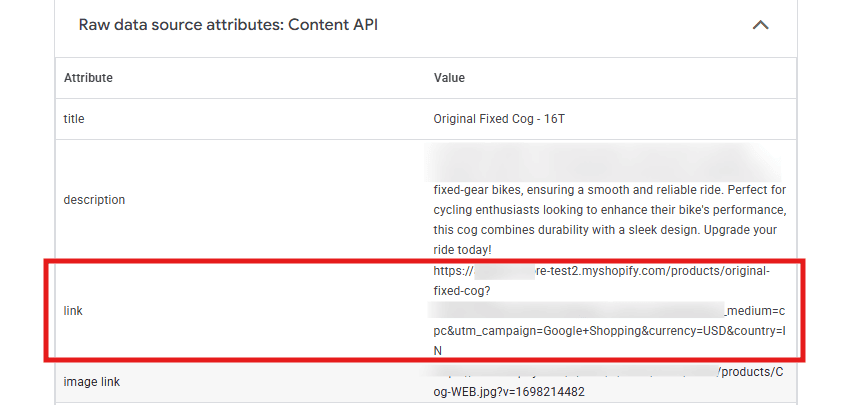
- You will notice a discrepancy in the URL’s domain and the domain that we checked in step 1, which is why we are facing this issue.
Step 3: Update the link [link] attribute values
Then, you must update the values of the link [link] attribute for all items that are facing this error to ensure that the domain in those URLs matches the one that is verified and claimed in your GMC. Also, the URLs that you submit must be accurate, lead to the correct product, and be valid.
But when you update the values, ensure that you are making changes in your original product data source that you used earlier to upload your products to the GMC for the first time.
This means if your products were added with the help of a Google Sheet, then just update the sheet, and Google will auto-fetch those values. If you had uploaded your products manually from your computer by uploading a file, then employ the same method again.
Step 4: Reupload Correct Product Data
Once you have made all changes in your original product source, reupload your entire feed.
If you are using scheduled fetches on the GMC, then ensure that you manually refresh your data once. This is because the schedule for the fetch can be set to “Weekly” or “Monthly”, and waiting for that period will delay the fixes and even lead to further complications such as GMC account suspensions.
Once you successfully re-upload your data, you will have to wait for Google’s review.
| Important note: If your store is available on a third-party platform such as Shopify and you are using a feed management app that leverages the content API to sync product data from Shopify to GMC, then the above process may not apply to you. That’s because such feed management solutions may not allow you to edit the link [link] attribute, and the default Shopify product landing page URLs for each item will be submitted to Google. Therefore, in such cases, if you notice the ‘mismatched domains’ error, all you can do is ensure that you have claimed the right online store URL and that the content API or app is submitting accurate values. |
Make feed management simple with AdNabu.
Sync your Shopify products to Google Merchant Center
quickly and keep them updated without hassle!

How Long Does Google Take to Re-approve Products?
Google typically takes 24-72 hours to review if, after your recent updates, the product URL’s domain is similar to your official GMC domain. If it finds that the issue has been resolved, you will notice that the affected items will no longer be listed on the “Needs attention” tab.
But remember, the 24-72 hours time period isn’t set in stone. For complex situations, Google may take longer than that.
| Note: If the issue still persists and you disagree with it, you can contact Google’s team. |
Preventing Future Domain Mismatches
We will now also discuss some tips that will help you prevent the domain mismatch error in GMC:
- Avoid redirects: In case you shift your domain, don’t use redirects. That can lead to the ‘Mismatched domains’ error in GMC. Rather, always verify and claim the new domain and update the URLs in your feed accordingly.
- Don’t submit products from multiple domains: If you either own multiple domains or manage multiple sellers and domains, then just ensure that you request Google for an advanced account setup. But strictly avoid submitting products from different domains in a single feed. That will trigger the mismatch.
- Claim the right domain: This tip is specifically for Shopify merchants. As merchants know, by default, Shopify assigns a ‘myshopify.com’ URL to your store. Don’t claim that on the GMC. Rather, add a custom domain and claim that.
- Regularly audit product data: Ensure that you analyze and audit your product data, either on the GMC or your original source of inventory data, on a regular basis. That will help you spot and avoid domain mismatches well in advance.
Conclusion and Key Takeaways
Fixing the ‘Mismatched Domains’ error on the GMC is important to ensure that your products stay approved and their visibility keeps soaring across Google.
The key takeaways from this blog include:
- Always verify and claim the correct domain before you submit your product data on the GMC.
- Make sure that the domains in the link [link] attributes of your feed match your verified website domain on the GMC.
- In case you notice that this error is affecting some products in your account, then for those products, update their link [link] attributes and resubmit your entire feed with the original product upload method.
- Avoid submitting products from multiple domains in one Merchant Center account.
- Shopify merchants should always ensure that they are claiming their custom domain on the GMC, and the default one which includes ‘myshopify.com’.
- Regularly audit your product data to spot and fix domain mismatches in advance.
Good luck!
FAQs
- Does the ‘Mismatched domains’ error relate to image link attributes in the Google Shopping feed?
No. This error only concerns the values of the link [link] attributes.
- How do I change the domain in Google Merchant Center?
Navigate to “Your Business” from the left-hand side navigation of your GMC account, and click on “Business info”. Under “Your online store” add your e-commerce website’s URL, and then you must verify and claim it.
- Why is verifying and claiming a website important?
Verifying and claiming your website on the GMC is important as it allows you to inform Google that you are the website’s owner and you can edit its content. Based on that understanding, Google allows you to use the website in connection with your GMC account.
- What happens if I keep ignoring the ‘Mismatched domains’ error?
Google can permanently suspend your account. Thus, always ensure that you resolve the issues on time.
- Where can I view which products are affected by this error?
In your GMC account, go to “Products” and then the “Needs Attention” tab. There you will find a list of all the affected products, and then using the filter icon, you can segregate all items affected by the “Mismatched domains” error.
- Do I need to contact Google support after fixing the error?
Usually, no. Google will automatically review your resubmitted data. However, if issues persist after updates, you can reach out to their support team.
Check Out These Related Articles:
- How to Fix Google Merchant Suspension Due to Health Products?
- Ultimate Guide to Fix the Invalid Business Name Error in GMC
- Personalized Advertising: Personal Hardships Error on Google Merchant Center
- How to Deal With Expiring Items in Google Merchant Center?
- How to Resolve Mismatched Product Availability Error in GMC?


