

In the dynamic realm of Facebook (Meta) advertising, tracking your audience’s behavior and analyzing their actions on your Shopify store can be a game-changer in improving conversions and ad campaigns.
But is it possible to do so? Absolutely! The answer lies in adding Facebook (Meta) Pixel, a crucial element when running your ads on Facebook.
Often, merchants find adding Facebook Pixel difficult. Some assume you need technical knowledge, while others seek technical expertise from developers. With too much jargon, it can be an overwhelming experience for all store owners, even for established businesses. Some even abandon the idea of advertising on Facebook, missing an excellent opportunity to reach potential customers.
What’s the best route?
We have gathered all the information you need to add Facebook Pixel to your Shopify store. This guide explains everything in-depth, from the installation process to executing the Pixel. Now, you don’t have to worry about hiring an expert; we are here to help you!
Are you ready for it? Let’s go!
Learn How To Add Facebook (Meta) Pixel To Your Shopify Store.
Table of Contents
- How Does Facebook (Meta) Pixel Function On Your Shopify Store?
- Steps To Add Facebook (Meta) Pixel To Your Shopify Store
- Method 1. Adding Facebook (Meta) Pixel Manually
- Method 2. Through The Facebook & Instagram App On The Sales Channels
- Method 3. Through Facebook (Meta) Pixel Apps On Shopify
- 1. AdNabu’s Facebook Pixel App
- 2. FBTrack ‑ Facebook Pixels App
- 3. OnePixel Facebook Pixel, TikTok
- 4. Omega Facebook Pixel Ad Report
- 5. ∞ Facebook Pixel ‑ TikTok Pixel
- 6. Trackify X Facebook Pixel
- 7. Orichi – Multi Facebook Pixels
- Adding Facebook (Meta) Pixel On Mobile Devices
- Testing Your Facebook (Meta) Pixel
- Where Is Facebook (Meta) Pixel Used?
- Linking Facebook To Shopify Product Feed
- Facebook (Meta) Pixel After Apple iOS 14 & 15 Latest Update
- Conclusion
- FAQs
How Does Facebook (Meta) Pixel Function On Your Shopify Store?
Facebook Pixel has made running Shopify ads on Facebook extremely simple. It helps with optimizing your ads and directs them to the right audience. It also gets easier to analyze customer behavior based on their actions while visiting your online store.
See it like this – A code that bridges the gap between you and your target audience. You can understand your customers better and, based on their actions, help improve your ad campaign and garner the sales you aim for.
The pixel runs in the backend of your store. You place the code in the header of the HTML section of your online store, between <head> and </head> tags. You can even integrate third-party applications to run Pixel. It then starts collecting data on the customers who are on your online store.
Pixel manages the following:
- Pixel ID and Facebook Cookie.
- Button-click data.
- Form-field data such as emails, contact information, etc.
- Additional information added via Custom Data events.
- HTTP headers include web browser information, IP address, personal details, etc.
If you’re wondering, “What happens if I don’t add Facebook Pixel to my store?” here is the answer:
- Tracking events (actions taken by a customer) gets complicated.
- It takes time to sort and find interested customers who are likely to buy your product or services.
- Running Advantage+ Catalog Ads becomes impossible.
- You’ll miss out on the potential of Facebook Ads and won’t be able to reach thousands of valuable customers.
- You won’t get insights that can help improve your ad campaigns.
So, by getting it, you can reap the following benefits:
1. Tracking Audiences & Their Behavior –
The Facebook Pixel feeds in the data and provides an overall analysis of which action (commonly known as events) received the most number of clicks and where you need to improve. For example, if a customer visits your store and makes a purchase, Pixel will track this as a ‘Purchase’ event, and you’ll receive the data.
The list of events is extensive. Here are the most important events that Pixel tracks:
- Add to cart
- Purchase
- Initiate checkout
- Pages visited
- Subscribe
We will learn more about events in the later section.
2. Building Target Audience –
A perk of using Facebook Pixel is building and finding your target audience. Tailoring ads according to potential customers’ interests and needs is easier. You gain insights based on what your customers click, like, and have shown interest in.
Also, it simplifies the creation of Custom Audiences and Lookalike Audiences. Custom Audiences help with sorting people based on age, demographics, location, etc., to make your ads reach them. Lookalike audiences have characteristics similar to your target audience, helping your ads reach new potential customers.
3. Retargeting Facebook Ads –
Pixel helps retarget your ads to the existing target audience. Based on your customer’s event history, Pixel facilitates dynamic retargeting, allowing you to showcase specific products and services that align with customers’ preferences. This generates a personalized experience, leveraging the Customer Audience and boosting the chances of a conversion.
The insights generated by Pixel can help you fine-tune your marketing strategies and build a better connection between your brand and the customer.
4. Optimize Bidding & Ad Performance –
After a potential customer clicks on an ad, Pixel instantly starts analyzing the interaction and provides you with fresh insights. These insights can help you identify where most traffic goes and what areas you need to improve upon. This way, you can improve your ad campaign tactics on Facebook and focus on getting high-converting leads.
With an effective strategy, you can use the lowest-cost bidding technique to connect with those most likely to complete a desired activity, like purchasing a product from your Shopify store.
Steps To Add Facebook (Meta) Pixel To Your Shopify Store
As a Shopify merchant who has entered the domain of the Facebook marketplace, a lot of your ads can be implemented seamlessly if you add the Pixel to your store’s website.
By now, you must’ve understood why it plays an important role in running ecommerce Facebook ads. So, we have rounded up three main ways to add Facebook Pixel to your Shopify store for a cohesive experience –
- Adding Facebook (Meta) Pixel Manually
- Through The Facebook & Instagram App On The Sales Channel Of Shopify
- Through Facebook Pixel Apps On Shopify
Before adding it to your store, ensure you have set up all the important elements of Facebook advertising, such as ads account, Meta Business Suite, and Meta Commerce Manager.
Let’s delve deeper into the steps to add Facebook Pixel to your Shopify store.
Method 1. Adding Facebook (Meta) Pixel Manually
Adding pixel manually means adding a code to your Shopify store’s theme editor. The process may sound technical, but it is not. Let’s check how you can manually add the pixel to Shopify.
Step 1. Visit Meta Business Suite and go to Events Manager. It’s on the left side of the Home page.

Step 2. On the left side of Events Manager, click ‘Connect data sources’ in green text.

Step 3. Select Web in the option that will look like this:

After selecting Web, click on Connect.
Step 4. You’ll be asked to create a Dataset. So, give a name to your dataset and click Create.

Once the dataset is created, enter your Shopify store’s URL.

In the next pop-ups, you’ll be asked to choose guidance/do it yourself and what type of business is yours. More pop-ups will appear asking about your technical expertise, budget, etc. Fill them out accordingly.
You may be asked which platform you want to integrate; select Shopify.

Once that is done, your Pixel will be ready.

All your Pixels will be displayed as shown here:

Step 5. Locate Add Events > From A New Website. This will appear:

Choose ‘Install Code Manually.’ You’ll see this page:

It is time to copy and add the code to your store. You need to add it in 2 places – one in the theme and the other in the order form confirmation page (to track sales).
Step 6. Go to your Shopify store. In that, navigate to the Online Store under Sales Channels.

Then, select Themes.
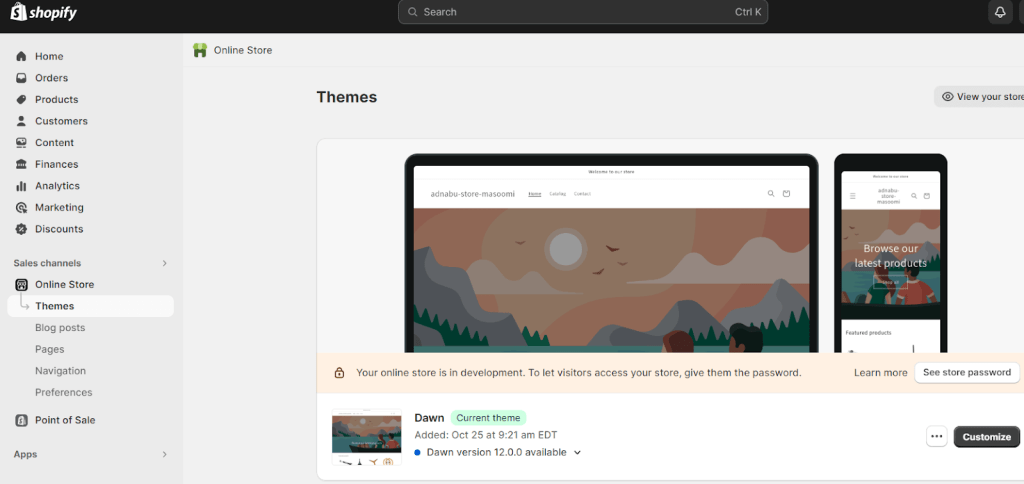
Find your current theme, which is highlighted in green. Notice the Customize button. You’ll see three dots next to it. Select those dots.

After clicking it, select Edit Code.

Step 7. You will reach the files containing your Shopify store’s code. Now, locate the theme.liquid on the left panel.

You’ll see the theme.liquid file containing the HTML script (refer picture below). Information can be displayed in a template using the Liquid template language. Liquid operates with variables and includes constructs such as loops, logic, and output. Liquid files are where HTML and Liquid code exist together.

Here comes the important part: locate <head> in line 3 in the HTML code.

Press the enter key. Your code must look like this:

Create space in line 4. This is where you’ll be entering your Pixel code. Go back to Meta Business Suite and copy the base code.

Then, go back to your Shopify’s code editor and paste it. This is how the snippet will look after pasting it in the editor. Save the changes.

Let’s give you an overall view:

The code snippet starts from the comment <!- – Facebook Pixel Code – -> and ends with <!- – End Facebook Pixel Code – – >.
In the code snippet, the function fbq(‘track’, ‘PageView’); will ‘track’ the event, ‘PageView,’ when a customer visits your store. Don’t make any changes to the code. In the same way, you can add more function calls for other events, such as if you want to add the event ‘Add To Cart,’ create a function fbq() under the fbq(‘track’,’ PageView’); –
fbq(‘track’,‘AddToCart’);
This function will track the number of customers who added an item to their carts and send the data to you on Events Manager.
Note: The example code contains {your-pixel-id-goes-here}. While copying the base code from Facebook, you don’t have to worry about adding the Pixel ID yourself, as it will automatically be generated in the code.
Now, let’s focus on adding ‘purchase’ event to track sales. This step is important as this part of the pixel code is not added in the theme editor but in the Order Status Page, which is where the checkout process is tracked. To add the code, follow the steps below –
Step 1. Go to the settings in Shopify admin. Navigate to Checkout.

Scroll down to the ‘Order status page.’

Usually, all the changes are automatically added to the Pixel code when you add it to the theme editor. But sometimes, we need to add the code separately, for example, while tracking the sales. We shall add the same base code we copied earlier but with a minor change.
Open the Conversion Tracking page.

Scroll down to Tracking Standard Events. You’ll see a code syntax containing a function fbq(), that has the event and a JSON object inside the parameter –
fbq(‘track’, ‘Purchase’, {currency: “USD”, value: 30.00});
Now, in the base code, add this function. Add it below fbq(‘track’,’PageView’);
<!-- Facebook Pixel Code --><script>!function(f,b,e,v,n,t,s) {if(f.fbq)return;n=f.fbq=function(){n.callMethod? n.callMethod.apply(n,arguments):n.queue.push(arguments)}; if(!f._fbq)f._fbq=n;n.push=n;n.loaded=!0;n.version='2.0'; n.queue=[];t=b.createElement(e);t.async=!0; t.src=v;s=b.getElementsByTagName(e)[0]; s.parentNode.insertBefore(t,s)}(window, document,'script', 'https://connect.facebook.net/en_US/fbevents.js'); fbq('init', '{your-pixel-id-goes-here}'); fbq('track', 'PageView');fbq('track', 'Purchase', {currency: "USD", value: 30.00});</script><noscript> <img height="1" width="1" style="display:none" src="https://www.facebook.com/tr?id={your-pixel-id-goes-here}&ev=PageView&noscript=1"/></noscript><!-- End Facebook Pixel Code -->Change the values in the JSON object with ‘currency’ and the amount given. You can opt for an average ‘value’ if you do not have a set amount.
Step 3. Copy this new code and paste it into the Order status page.

Save the changes. You have successfully added Facebook Pixel to your Shopify store. You can view the changes by visiting your store or right-clicking the website’s page and selecting ‘Inspect’ to check the code.
Method 2. Through The Facebook & Instagram App On The Sales Channels
Another way is to install the Facebook & Instagram app by Meta. If you’re unfamiliar, it’s an app that helps connect your Shopify account with your Facebook and Instagram accounts to run ads on these marketplaces. Your product catalog is accessible across all Meta technologies. The app can also install Facebook Pixel to your Shopify store without needing an external code (as seen earlier).
While adding Pixel through Facebook & Instagram, ensure you have not added the Pixel code in the theme editor. If you have, remove it; this app will automatically start tracking your customers’ behavior and activity.
Here is how you can install the app to the Shopify store:
Step 1. Go to your Shopify admin. In it, navigate to Sales channel > Online Store.

From there, go to Preferences. Scroll down and locate Facebook Pixel.

Click on Set Up Facebook. You’ll be taken to the Shopify app store to install the Facebook & Instagram app.
Step 2. Start installing the app and add it to your Sales Channel.

Click on ‘Get Started.’
Step 3. Set up by linking your Facebook account and pages to it.

Link your Facebook account and Business account. While adding your Business account, you’ll be prompted to select your sharing preference:

This is an important part of activating data sharing in your online store.
The Standard option (Conservative) only tracks customer behavior.
Meanwhile, the Enhanced and Maximum options send additional customer data. The Enhanced option uses advanced matching to collect customer data such as their name, location, contact details, etc.
The maximum option uses Conversion API, which extracts the maximum amount of data to help boost your ad performance, accuracy measurement, and event optimization.
We recommend choosing the Maximum option so that your ads reach a wider audience.
You’ll be asked to connect Pixel to track customer behavior. If you have not set it up or cannot add Pixel, visit the Business Support Home to fix the issue.

Next, read the terms and conditions carefully and click ‘Accept’ to proceed.
If you want to locate the Pixel you’ve created, you can find a list of them you have made in the Customer data-sharing part of your Share data settings on Facebook & Instagram by Meta. Click Connect to link an existing Meta pixel; to create a new Meta pixel, click Create new.
Your Meta Pixel is set and ready to work.
Note: Ensure you’ve connected all the accounts – ads account, business account, and business page and the payment is set up. Your card/banking information must be linked in order to install Facebook Pixel.
Method 3. Through Facebook (Meta) Pixel Apps On Shopify
Sometimes, store owners find the installation process taxing and look for an easy way to configure Pixel to their store. To ease the owner’s problem, Facebook lets you add Facebook Pixel via Shopify apps.
Let’s explore some of the best apps that will easily do the job –
1. AdNabu’s Facebook Pixel App
Rating: ⭐⭐⭐⭐⭐(4.8/5.0)
AdNabu’s Facebook Pixel app offers a hassle-free way to connect your Shopify store to Facebook. It tracks conversions seamlessly – no need for complex setups with Facebook & Instagram sales channels. The app is free to use.
Now, you can easily manage all your pixels, get detailed event analytics, and implement advanced matching, all within your Shopify admin.
Here are all the perks the app offers –
- It generates pixel code based on the events (customer activity) you fetch.
- Removes the hassle of fitting the pixel in the website’s theme.
- Quickly connects your pixels on Facebook to Shopify in just a couple of clicks.
- Enables advanced matching (for purchase & initiate checkout events) & Conversion API (for purchase events).
You can run the app in three simple steps –
- Adding The App To Your Shopify Store –
Install the app from the Shopify app store. Connect your Facebook business account with your Shopify admin.
- Connecting Pixels Directly From Facebook –
After connecting the two, on the app’s homepage, you will see all your pixels appear in a dropdown. If you do not see them, click the refresh (or sync) button on the right side of the dropdown menu. If you haven’t created any pixels, go to Events Manager and create one. The newly created pixel will appear in the app.
- Executing The Pixels –
Enable the pixel, add events, copy the script generated below, and paste it into Customer events in the Shopify admin settings.
You can also check out other pixel apps –
2. FBTrack ‑ Facebook Pixels App
Rating – ⭐⭐⭐⭐⭐(4.7/5.0)
With multiple Facebook Pixel tracking features, FBtrack is a great app for conducting in-depth conversion tracking. It uses Conversion API for errorless tracking, which boosts accuracy.
Features
- Uses Conversion API.
- Add multiple Facebook Pixels as a backup.
- Unlimited server-side tracking.
- Fast reporting and upgrades.
- Quick setup and in-app guides.
Pricing:
- 7-day free trial.
- $7.99/month
3. OnePixel Facebook Pixel, TikTok
Rating – ⭐⭐⭐⭐⭐(4.7/5.0)
Running Facebook ads gets smoother with the OnePixel app as it focuses on enhanced tracking of events and allows you to add multiple pixels for your Shopify store.
Features:
- No code platform.
- Automatic pixels installation.
- No need for an account connection.
- Instant build for Facebook Custom Audience & Lookalike Audience.
- Events tracking.
Pricing:
- 7-day free trial.
- Starter: Free
- Standard: $9.90/month
- Professional: $19.90/month
- Advanced: $29.90/month
4. Omega Facebook Pixel Ad Report
Rating: ⭐⭐⭐⭐⭐(5.0/5.0)
The Omega app is perfect for running Facebook ads and also for retargeting. The app also comes with a product feed generation feature with advanced Conversion API and accumulates fresh data in real-time.
Features:
- Events are auto-tracked.
- Quick Pixel set up in 2 mins.
- Real-time UTM attribution report.
- Offers an intuitive dashboard.
- Automated catalogs & Live Feed Links save time.
Pricing:
- 3-day free trial.
- Two Owls Standard: $15.99/month
- Enterprise: $20.99/month
5. ∞ Facebook Pixel ‑ TikTok Pixel
Rating: ⭐⭐⭐⭐⭐ (4.7/5)
This Pixel app facilitates update, auto-sync, and optimization of product feeds for Google Shopping, Facebook Channel, and TikTok Shop. It also supports unlimited server-side tracking and automates the generation of Facebook product feeds for Facebook Catalog and TikTok Shop Feed.
Features:
- It easily bypasses iOS 14.5’s restrictions on conversion tracking and enhances data collection.
- For smooth ad targeting, it integrates with Facebook and TikTok.
- It comes with an Advanced Event Management System.
- Option to add multiple Pixels for an enhanced tracking experience.
- It has a pre-built data layer with e-commerce events and GTM (Google Tag Manager).
Pricing:
- 7-day free trial.
- Free to install.
- Basic Shopify Plan – $6.99/month
- Advanced Shopify- $9.99/month
- Shopify Plus – $19.99/month
6. Trackify X Facebook Pixel
Rating: ⭐⭐⭐⭐⭐ (4.9/5)
This app functions on Facebook, Snapchat, and TikTok. It boosts the functioning of standard pixels and provides detailed tracking, which enhances retargeting capabilities and provides a deeper understanding of customer behavior. It comes with a 14-day free trial period.
Features:
- Helps with creating Custom Audiences to find suitable customers for your brand.
- Generates accurate reports for every pixel. It also generates reports for every tag, product, collection, and UTM tag.
- Protects optimization of data by allowing a second pixel to mirror the event data of your primary pixel.
- Provides a synchronized operation between Facebook and Shopify.
- Tracks are based on the latest iOS 14 privacy update.
Pricing:
- 14-day free trial.
- Basic Shopify: $29.99/month
- Shopify: $59.99/month
- Advanced: $99.99/month
- Plus: $199.99/month
7. Orichi – Multi Facebook Pixels
Rating: ⭐⭐⭐⭐⭐ (4.7/5)
This app provides precise tracking of numerous Facebook Pixels and Conversion API, particularly addressing attribution challenges with iOS 14+ devices. It links an advertiser’s server-side tracking with multiple pixels and improves ad targeting and measurement.
Features:
- Comes with UTM tracking (UTM link) across all ad channels.
- Enables you to track store actions and provides insights that go beyond standard conversion tracking.
- Easily add multiple pixels to one or different Shopify stores.
- Accurately tracks events occurring on the online store.
- Ensures data accuracy by preventing event duplication.
Pricing:
- 3-day free trial.
- Basic & Shopify Plan: $14.99/month or $90/year.
- Advanced & Plus Plan: $24.99/month or $149.99/year.
Adding Facebook (Meta) Pixel On Mobile Devices
Now, adding Pixel to your Shopify store gets easier when you’re on the go. You can add it to your mobile devices and easily track customer behavior.
Ensure you have the Shopify app installed on your mobile device to make this happen. Let’s see how you can add them to different devices –
- Installing Facebook Pixel On Android Phones
Follow these steps to add Pixel to Android:
- Open the Shopify app on your smartphone and locate the … button. Select the button.
- Go to the Sales channels section and open the Online Store. In that, tap on Manage Themes.
- In the Current Theme section, press the … button. Then, select Edit code.
- In the editor, find the theme.liquid file. You’ll see the HTML code.
- Copy the base code (Meta pixel code) from Facebook. You can paste it between the <head> and </head> tags.
- Save the changes.
- Installing Facebook Pixel On iPhone
Follow these steps to add Pixel to Apple devices:
- Open the Shopify app on your smartphone and locate the … button. Select the button.
- Go to the Sales channels section and open the Online Store. In that, tap on Manage Themes.
- In the Current Theme section, press the … button. Then, select Edit code.
- In the editor, find the theme.liquid file. You’ll see the HTML code.
- Copy the base code (Meta pixel code) from Facebook. You can paste it between the <head> and </head> tags.
- Save the changes.
Testing Your Facebook (Meta) Pixel
If you want to check how your Pixel is performing, you can add an extension called the ‘Meta Pixel Helper’. It scans websites for Meta Pixel code automatically while operating in the background. A </> icon will show up in the browser’s upper right corner next to the address bar after the extension is installed.
A tiny badge showing the number of pixels on the webpage and the Pixel Helper icon turning blue are indicators that a website has Meta Pixels loaded. If the icon does not turn blue, it would mean that the webpage does not have any installed Meta Pixels. When you click the Pixel Helper symbol, a small popup window containing useful information to check, verify, and troubleshoot the pixels appears.
Here is how Pixel Helper works –
- Identifies if Pixel is added or not in the Shopify store.
- Helps with troubleshooting and checks if Pixel is working properly.
- Detects for errors that may occur during Pixel’s operations.
- Analyzes and understands the events occurring.
Not only that, Pixel Helper helps provide useful tips that will improve the Pixel’s performance, such as –
- It helps with logging actions like placing the Pixel code in the header section so that Pixel Helper is able to track the performance without any hurdles.
- It advises using Meta’s recommendation of placing no more than one conversion event per page. This helps optimize tracking and enhances event performance.
- In order to prevent any detection problems, Pixel Helper will advise you on how to opt back in through your settings if you have opted out of tracking.
Where Is Facebook (Meta) Pixel Used?
Now that you have added Pixel to your Shopify store, it’s time to shift your focus to incorporating your Pixel into various sections to execute a successful Shopify ad campaign on Facebook. By now, you likely understand its significance; let’s explore its applications for running ad campaigns.
The most important function of pixel is to track the events of the target audience.
Let’s look at how Pixel can help you build events manager:
Using Facebook (Meta) Pixel In Events Manager
Events Manager is a section in Facebook Business Manager that tracks the events (actions) of your customers who have visited your store. It showcases data on the majority of the actions taken in order to improve your ad campaigns.
You gain insights and learn about the most visited part of your online store. It is effective when running Facebook ads by tracking customers who have visited your store through the ad and created an event, such as – viewing content, adding items to the cart, etc.
Follow the steps below to set up Events Manager –
- After setting up your Pixel, go to Facebook Business Manager.
- Select All Tools > Events Manager.
- In Events Manager, go to Manage prioritized events.

- You’ll reach Web Event Configurations. In that, select a domain to create events. Click on the downward arrow of one of the domains > Manage Events > Edit.

- You can enter eight events into your domain. Set priority on the most important events and then go down to the least important ones. For example, the most important event for every e-commerce store is ‘Purchase.’ So, set Purchase as the event with the ‘Highest Priority.’
- In the Pixel/Custom Conversion section, choose the Pixel for tracking the Purchase. Ensure the Pixel code you add in the theme editor has the function fbq(‘track’,’Purchase’);.
- Now, choose the Event Name. In this case, select Purchase from the dropdown.
- To add another event, on the top right, click the green ‘Add Event’ button. Set a priority for the event between Highest and Lowest.
- Based on the priority, add 8 events to track the customer actions – Purchase, checkout, Add to cart, View content, etc.
- Finally, go to Apply. A confirmation message will appear that summarizes the events you have added. Tick the ‘Yes, I confirm the changes’ and apply the changes.
- Now, if you have more domains on the Web Configurations page, add events to those domains too, by following the same process.
- Now, it is time to test the events. Go back to your Events Manager > Select the Pixel you have added to the domain.
- Locate ‘Test events.’ In that, go to the ‘Test Browser Events’ section and enter your site’s URL.
- Then, open your site and test it. For example, if you’re viewing the website’s page, then the event ‘Viewing content’ will be visible in Events Manager. Similarly, for other actions, you can check if the data is being retrieved by performing those events, such as selecting a product from the catalog, adding it to the cart, etc.
This way, you can easily track the events occurring on your Shopify store.
Linking Facebook To Shopify Product Feed
To run Facebook ads without any hassle, you need to connect your Shopify product feed to Meta Commerce Manager. Your product feed instantly appears on your Meta Commerce Manager, and managing it becomes easier. There are two ways to add your product feed to Facebook –
- Manually uploading the CSV file.
- Using a data feed URL. (Recommended)
Let’s see how you can export your product feed:
- Go to the Shopify admin account > Products.
- In the Products section, click on Export on the top right side.

- Download the CSV file format.

- Go to Meta Commerce Manager and look for Catalogue.
- If you have not created one, then click on Create A Catalogue. This page appears after you click ‘Get Started’ if you’re new or in the Assets section.

- Select E-commerce. Choose a partner platform.

- Finally, your Catalogue is ready.

- Click on Add Items on the right. This page will be displayed –

- Select Data Feed. It will list the instructions you need to follow. Select an upload option. In this, upload the CSV file that you’ve downloaded from Shopify admin.

- After uploading, click Next. Select the currency and start the upload. It will take some time to upload. Check all the warnings you receive, for example, ID duplications, GTIN checks, etc. After fixing those, your products will finally be exported to Facebook.
Another way, which is faster and instantly exports product feed to Facebook, is by using the data feed URL. For this, AdNabu has come to your rescue. The app generates unique data feed URLs for different marketplaces such as Instagram, Pinterest, X (Twitter), Snapchat and Facebook. You can easily set up your feed in seconds by following the steps below –
- Go to the Marketplaces section on the AdNabu app. Select Facebook & Instagram Feed.

- Ensure that Facebook & Instagram Feed is enabled. Afterward, check the countries and languages you wish to add. You can even edit the UTM parameters. Save the changes you’ve made.

- After you save the changes, you’ll notice a Data Feed URL below Orders. Copy the link and paste it on your Meta Commerce Manager.

- In the Commerce Manager, navigate to Catalog, and select the Data Sources tab. In the Add Items section, select Data Feed.

From there, go to Choose File and click Use A URL. Enter the URL you copied from the app. Click on Next, and you’ll reach Set Schedule. Once you set the schedule, save the feed and upload it.
Your product feed will easily be exported.
Facebook (Meta) Pixel After Apple iOS 14 & 15 Latest Update
After the launch of iOS 14, Apple introduced a new privacy policy to protect its users’ data and information. This meant changes in how Pixel would retrieve user data and information. The update brought in the Aggregated Events Measurement (AEM), which was a way of measuring web and app events of users who are using iOS 14 and above devices.
It was set up to keep conversion data and ad optimization private. This meant that advertisers on Facebook would be allowed only a maximum of eight conversion events per domain for campaign optimization.
This limitation persisted even after the launch of iOS 15. However, as of 2023, Meta has removed this measurement. Previously, store owners could opt out of this feature, but Meta has now removed it for everyone, enhancing the advertising experience. The changes involve:
- AEM is no longer available on Meta Events Manager.
- Eight conversions per event is no longer a priority.
- No need for domain verification of your website (You may still need to verify the domain for other purposes).
- You no longer need to choose a conversion domain when you create an ad campaign in Ads Manager.
Conclusion
There are a plethora of ways one can add Facebook Pixel to their Shopify store – through manually adding code, by using the Facebook & Instagram app, and third-party Facebook Pixel apps. You can choose the one most suitable for you to track your Shopify Facebook ads.
So, now that you’re all set, it’s time to embark on the journey of tracking customer events to improve your Facebook ad campaigns and get maximum ROAS out of it!
FAQs
How to use Custom Pixels?
Custom pixels enable you to collect customer events on additional pages of your online store, including the checkout and post-purchase pages. They can be used on an online store to track customer events by making changes to the theme code in the editor, such as theme.liquid, checkout.liquid and additional scripts or by using a third-party app such as Trackify X Facebook, FBTrack, etc.
To add it to your store, you first need to get the custom pixel code and add it to your theme editor (the same way you add Meta Pixel). Ensure the custom events are not tracked more than once. To do so, remove any extra pixel code. Then, on your Shopify admin, go to Settings and locate Customer Events. In that, enter a new, unique name for your Pixel and click Add Pixel. In the section, paste your custom pixel code and save it. Once done, click Connect to track custom events.
What are App Pixels, and do I need one?
App pixels are scripts embedded in third-party apps or sales channels in your Shopify admin. These scripts work within a confined environment known as a sandbox. This sandbox uses Shopify-controlled APIs to gather or retrieve data, minimizing the impact on your Shopify store’s security, privacy, activity, and performance.
You can find the apps in the Customer Events section. It is mainly used for collecting customer data and tracking their activity.
Adding App Pixels is a choice for store owners. It is not compulsory to get app pixels. However, in case you’re using it, ensure you have the customer’s consent.
How to check if Meta Pixel is installed on my Shopify store?
To check if Meta Pixel is installed on your Shopify store, go to Facebook Business Manager and locate Events Manager. In the Events Manager, go to data sources. You will see a list of pixels appear in front of you. For this to work, ensure that your data source is linked to Shopify.
Another way to check if it is installed is to download Meta Pixel Helper, which will keep track of all the pixels running on your Shopify store. If Meta Pixel Helper is not tracking any Pixels, then there is a chance that you don’t have a Pixel installed.
Why is my Meta Pixel not working?
The most common reasons for Meta Pixel to not work are diverse. If you face any of the errors listed, it could be because of the following reasons –
A pop-up message indicating that you need to make payment to run ads. Pixel will only work for your Shopify store if you add your credit or debit card details.
Encoded Characters issues arise when characters are double-encoded, requiring careful examination of encoding practices. Invalid Pixel ID errors result from mismatched Pixel IDs; verification in Events Manager is important.
Pixel Did Not Load errors may come from coding errors/dynamic events such as button clicks, often resolving if a user interaction takes place. Pixel Activated Multiple Times errors occur when identical Pixels are sent multiple times, for which you must check the Pixel code in the theme editor and ensure single events are tracked by a particular pixel.
Can Not Find Product Catalog errors signify missing Product Catalog IDs, emphasizing the necessity of catalog association.
Not a Standard Event warning indicates events deviating from Standard Events, urging adherence to standard event names. Pixel Advanced Matching warnings indicate invalid or incorrectly formatted values for advanced matching parameters, emphasizing the importance of correct formatting before passing them to the Meta Pixel.
Data Processing Parameters Sent issues may arise if parameters are not sent correctly with the Limited Data Use (LDU) flag. Pixel Took Too Long to Load warnings highlight the importance of optimal Pixel placement for timely activation. Lastly, Pixel is Not Paired with a product catalog warnings imply the need for pairing Pixels with catalogs to establish certain relationships.
Meta Pixel is slowing my site’s speed. How do I fix it?
If Meta Pixel is slow, it could be because of the location of the Meta Pixel on the webpage. It’s better to position the code early on the web page, preferably in the header section of the theme.liquid file (the HTML code section) between <head> and </head> tags.
If a customer leaves the page before the Pixel event activates due to the delay, events (actions) won’t be tracked. This delay can result in the loss of a significant percentage of actions and conversions.
Is Meta Pixel free?
Yes, Pixel is completely free to use. You can connect your Shopify store and create Pixels for specific events. However, when it comes to creating Custom Audiences and running retargeting ads, you must make payments to run an ad campaign. The prices depend on the budget and your targeting preferences.
Check Out These Related Articles:


